
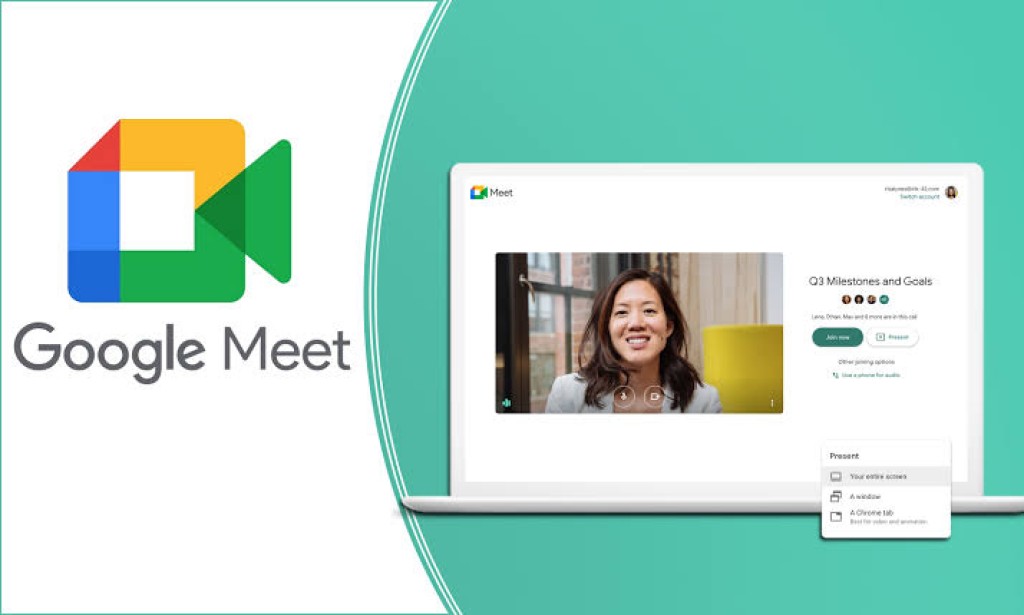
Google provides various services that you can use to make your work easier, one of which is the Google Meet feature. This feature will help you conduct various online meetings or meetings. However, in the midst of this widespread use, do you already know how to make Google Meet?
Yes, if you usually just join as a participant, maybe there are times when you will also become an admin someday. Knowing how to make Google Meet will be very useful for you. Actually, this process is not too difficult. In fact, you can use existing tools. It doesn't have to be a PC or laptop, a cellphone can. Well, if you want to know several ways to make Google Meet along with the various features available, just look at the following explanation.
1. How to Make Google Meet on PC
You can do Google Meet on a PC. If you don't know it, just take a look at the explanation of the following easy steps.
- Open the Google Meet site on your PC or laptop.
- On the main page, please click "Start Meeting".
- Next, click "Join Now" to create a meeting room.
- Google Meet link generation was successful.
- After that you need to copy the link in the pop-up menu.
- Share the link to a message group, such as WhatsApp or Telegram so that meeting participants can access.
2. How to Make Google Meet on HP
Not only through a PC, you can easily do how to make Google Meet on your cellphone. Users tend to think HP is a simpler device. Well, if you want to know how, just take a look at the following explanation.
- To make Google Meet on your cellphone, you need to download the application first in the Appstore or Playstore.
- Next, open the Google Meet application.
- Then, sign in to your Google Account first and make sure you don't enter the wrong account data.
- Give permission access for camera and microphone first for sound and video.
- Select the new meeting menu.
- Continue to select instant meeting if you want to hold a meeting immediately.
- Share the url link code to meeting participants so they can join the meeting room.
- In addition, you can set the schedule in Google Calendar if you want to arrange for another day.
3. How to Make Google Meet with Various Features
There are several features that you can use in how to create Google Meet. This feature has various advantages to maximize the meetings you have. Here is information about the features you need to know.
- You can hold online meetings for free by reaching a large number of participants.
- Features preview screens for video and audio, so users can make camera and microphone settings before joining.
- Easy to use on a variety of devices, from laptops to smartphones.
- There is an automatic subtitle text feature that you can use. To activate it, it can be done by clicking the three dots, then selecting the available options (while only in English).
- There is a special feature for control for admins or meeting organizers to run smoothly.
- There is a message exchange feature that allows participants to interact via the chat column.
- Has screen sharing feature. Effective for use during presentations or group work.
- Integrates directly with Google and Microsoft Office. So, it is very easy to use via the gmail or calendar feature on google.
4. How to Use Google Meet on Mobile and Laptop
After knowing how to create Google Meet, you also need to know how to use it when joining a meeting room. Here are some steps you can take.
1. Using Google Meet on Mobile
- Download the Google Meet app first.
- Next, please login using a google account.
- When you have entered the main page of Google Meetings, select "New Meeting".
- Next, you will see the display of three tab menus, namely participant, message, and information.
- Each of the uses of the three menus include:
1) Participant tab to view the list of participants.
2) Message tab to share text messages among participants.
3) Information tab to view the link or meeting link. So, you can share the meeting link by sending the link to other participants.
2. Using Google Meet on Laptop
- First, open the site meet.google.com with a browser.
- You can login using a registered google account.
- After the initial page or display appears, click "Start a Meeting". Do not forget to set access to use the microphone and camera.
- Next, click the "Join Now" button to join the meeting on google meet that has been created.
- Invite meeting participants through their google account, by sending an invitation message containing a link to join.
Those are some ways to make Google Meet and how to use it on cellphones and laptops. There is also information about the various features that Google Meet has so that you can take full advantage of it.

You must be logged in to post a comment.